25% off your first order when you join the rider list

Claim it
Fully custom gear · Built to order · 26.3 Ascendancy out now · Fitment guaranteed or your money back
Main menu
Tutorial mode

One ofone.

Everything you need to design a fully custom gearset in our editor, one level at a time. Need help? Email ridersupport@sprgear.us.

8Levels
15Drawing tools
10Fonts
LVL 01 · Start

Pick your mode

Up top you'll see two modes. Design online lets you build the whole kit right in the editor. Upload my own art is for designers: download our blank template, build your kit in Illustrator, then upload the file with your order.

Pro tipNot sure? Start online. You can save your project file and pick it back up any time.

LVL 02 · Basics

Paint the panels

Click any panel on the jersey or pants to select it, then pick a color in the Colors tab. Every panel can be solid, a gradient, a radial fade or a pattern like stripes, dots, waves or pinstripes.

Got an exact brand color? Type in the hex code.

VSelect

Pro tipUse the view menu in the top bar to switch between Full kit, Jersey and Pants and focus on one piece.

LVL 03 · Build

Draw shapes

Grab a shape from the tool rail on the left: rectangle, ellipse, triangle, stripe, chevron, diamond, star, hexagon, swoosh, lightning bolt or wave. Drag it onto a panel. Everything is clipped to the panel you start in, so edges stay clean at the seams.

Need something custom? The Pen tool draws any shape: click for corners, click and drag for curves.

RRectangleEEllipsePPen

Pro tipDrag the handles to scale and rotate. Hold the space bar and drag to move around the canvas.

LVL 04 · Build

Mirror it

Turn on Symmetry in the top bar and everything you add gets mirrored to the other side automatically. Perfect for matching sleeves, side panels and pant legs.

MMirror selection

Pro tipAlready drew one side? Select it and press M to mirror it across.

LVL 05 · Style

Drop your logos

Open the Logos tab. Place SPR graphics (you can recolor them) or upload as many logos as you like: PNG, JPG or SVG. Transparent PNGs look cleanest.

Click a logo to move it and drag its handles to size and rotate.

Pro tipUpload the highest quality file you have. Vector SVGs print the sharpest.

LVL 06 · Style

Name + number

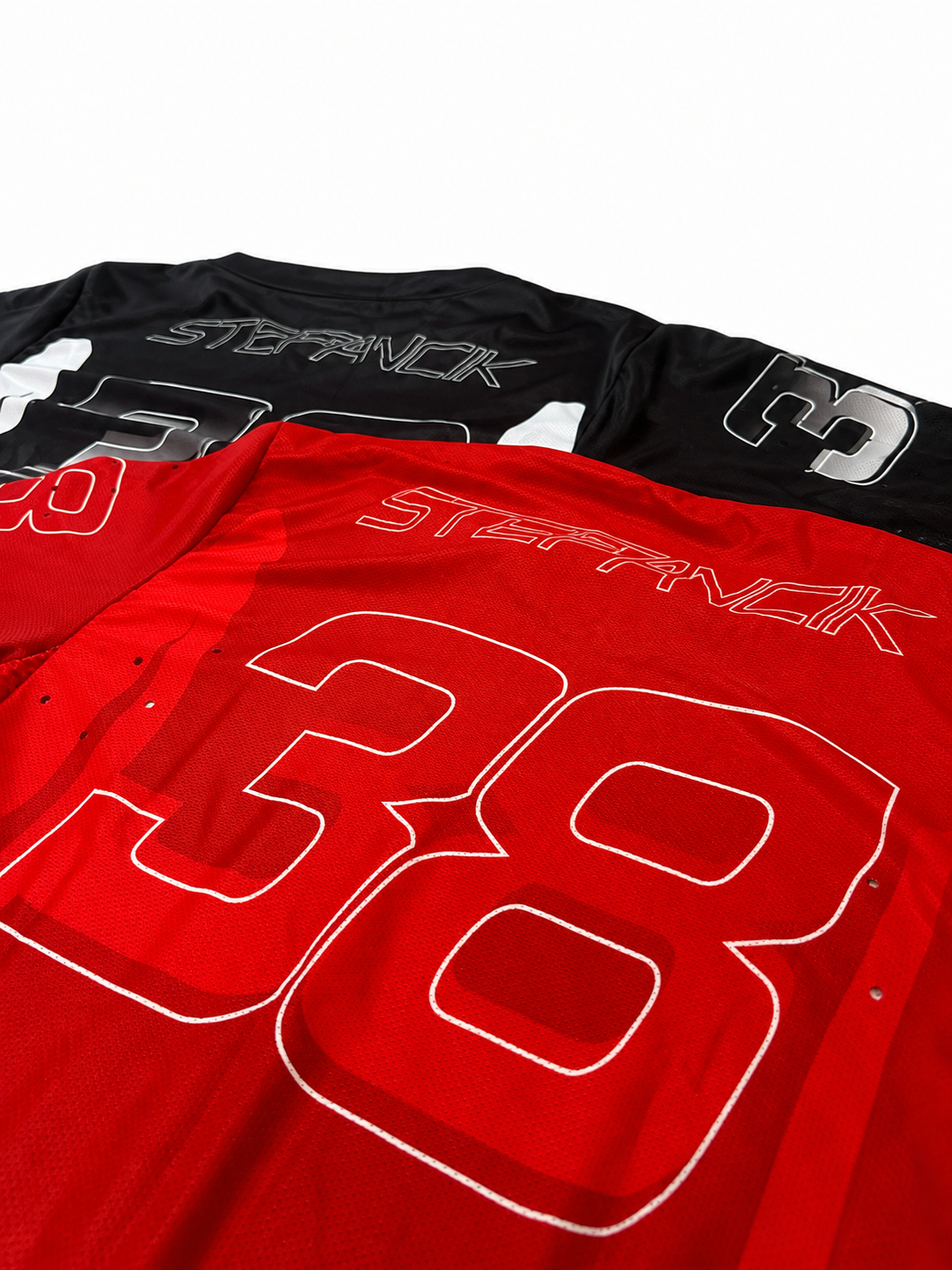
In the Name / No. tab, type your name and number. Pick separate fonts for each from 10 options, then set colors and outlines so they pop off the jersey.

TText

Pro tipBig, bold fonts with an outline read best from across the track.

LVL 07 · Pro

Layers + lock

Everything you add lives in the Layers tab. Show or hide items, lock them so they can't move by accident, and change what sits on top.

[Backward]ForwardCtrlDDuplicateCtrlZUndo

Pro tipLock your base panels once you love them, then go wild on top.

LVL 08 · Finish

Save + order

Open Files to save your project or download a PNG or SVG of your design. When it's ready, head to the Order tab: pick your jersey and pant sizes, confirm the artwork agreement and add it to your cart. Your design files are attached to the order automatically.

Pro tipSave the project file before you check out so you can tweak it or reorder later.

Controls

Keyboard shortcuts for desktop. On a phone or tablet, tap and drag. Questions? Email ridersupport@sprgear.us.

  • V Select
  • H Pan
  • R Rectangle
  • E Ellipse
  • P Pen
  • T Text
  • M Mirror
  • Space Hold + drag to pan
  • CtrlScroll Zoom
  • 0 Fit to screen
  • CtrlZ Undo
  • CtrlShiftZ Redo
  • CtrlD Duplicate
  • [] Layer order
  • Del Delete

Stuck on a level?

Our rider support crew will help you finish your design. Email us any time with your question or a screenshot of your kit.

ridersupport@sprgear.usOpen the editor

Press start.

Tutorial complete. Go build something nobody else has.

Launch ONE OF ONERather pick a kit?